

Add Google Analytics To WordPress
Here you will get the Ultimate Step by Step Guide for adding Google Analytics to WordPress site.
What is Google Analytics?
Short Introduction
Google Analytics is a free Google web analytics service that tracks and reports traffic on the website. Google launched this service in November 2005 after acquiring Urchin. Google Analytics is now the most used web analytics service on the Internet.
So if you want to add Google Analytic to WordPress site, then follow the steps…
Step 1 :
Go to Google Analytics and select a google account, which you want to use for Analytics
Now click On ‘Sign Up’ button

Step 2 :
In the Website section,
- Enter a name in ‘Account Name’
- Enter your website name
- Enter your website URL, for example https://webplover.com
- Select an Industry Category, for example Science.
- Select your Time Zone.
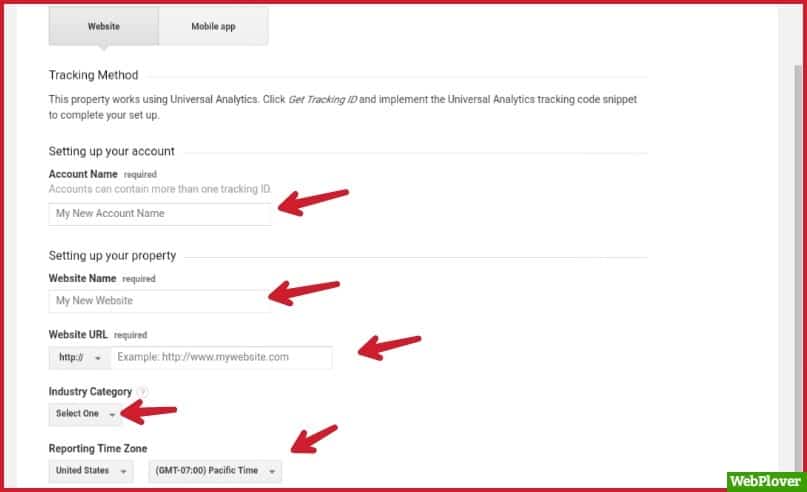

Check in the all boxes, then click on ‘Get Tracking ID’ button.

Step 3 :
Read all the Terms Of Service carefully, then check in the two boxes and click on ‘I Accept’ button.
Now you will be seeing a page like this

Step 4 :
In this step we will install the Google Analytics plugin in our WordPress site.
For this, login to your WordPress site, and click on Plugins → Add New
Search for ‘Google Analytics’ plugin. install & activate it.
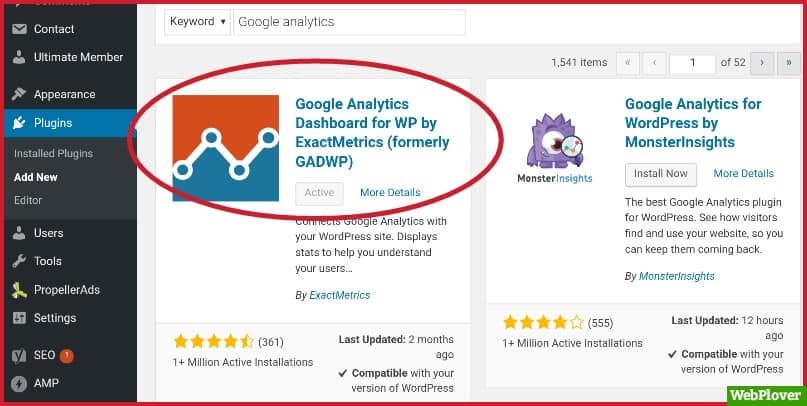

After activating the plugin, click on ‘Google Analytics → General Settings’
then click on ‘Authorize Plugin’
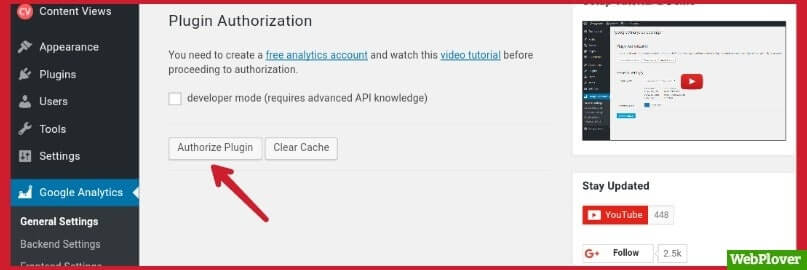

Then cick on ‘Get Access Code’
To get access code, selet google account which you Signed Up at Google Analytics
Copy the code and paste it in ‘Access Code’, then click on ‘Save Access Code’ button.


Now click on ‘Save Changes’
Its done!
Now you can easily track and report traffic on your website by signing in to Google Analytics
Here are a few guides for you to read next:
What’s Next!
Now if you have any questions, don’t hesitate to let me know through comment or email, i will try to help you.
If you find this article helpful, then please Subscribe to our YouTube Channel for video tutorials, and share this article on social media.